Email alerts
Email is the reliable backup channel: while Telegram lands in seconds, email digests are great for batched morning review.
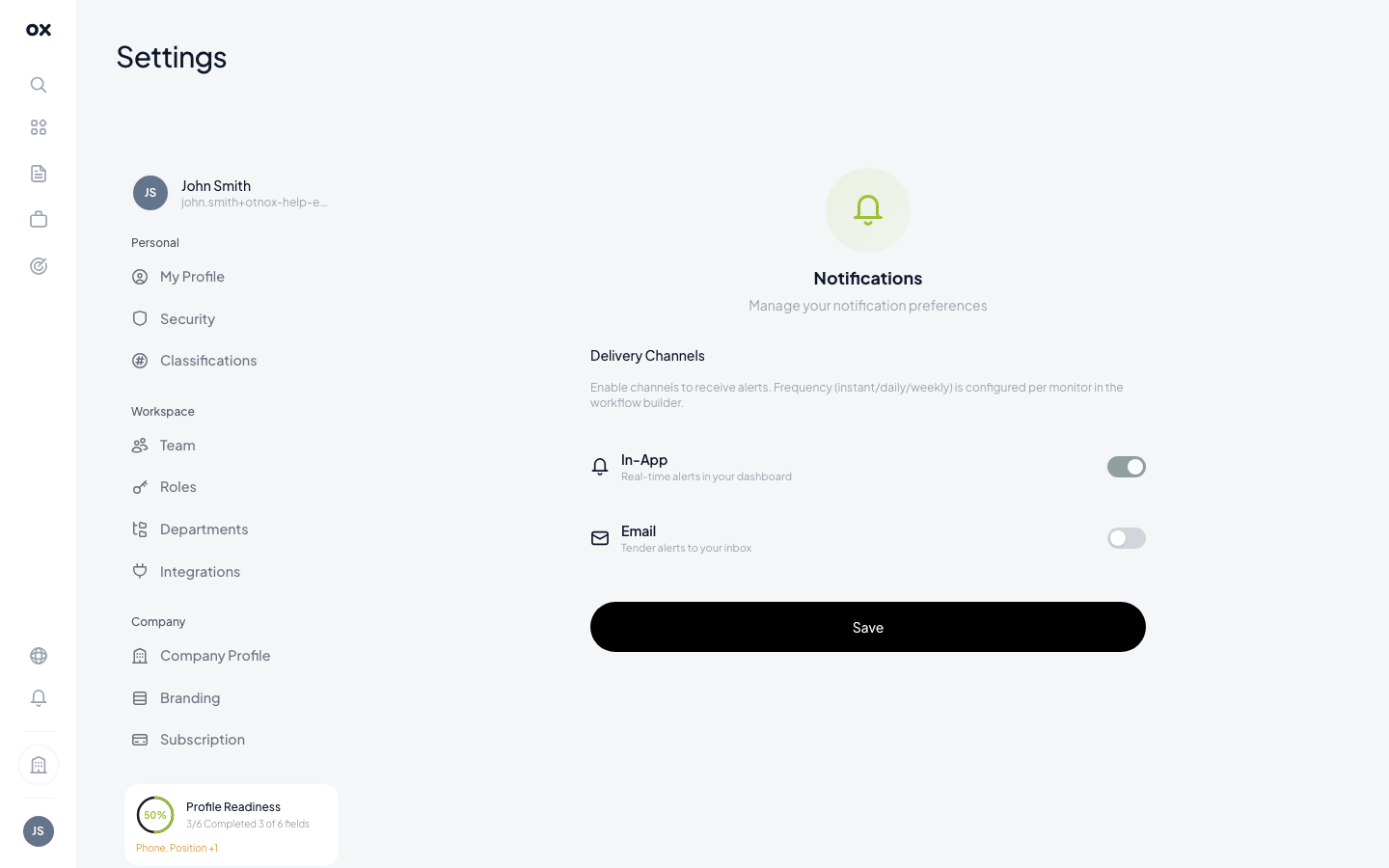
Enabling email alerts
- Go to Settings → Notifications.
- Under Email, switch the toggle on.
- Confirm the email address (defaults to the one you signed up with).
- Pick a delivery cadence: Instant, Daily digest or Weekly digest.
Email alerts apply across all your monitors by default. To make a specific monitor email-only or skip it entirely, open the monitor and edit its Send notification node.
Cadences
Instant
One email per match, sent as soon as Otnox detects it. Best for narrow, high-value monitors where every opportunity matters.
Daily digest
One email per day, every weekday morning in your locale's timezone, covering the last 24 hours. The default — gives you a clean morning list.
Weekly digest
One email per Monday morning covering the previous week. Good for slow-moving markets or low-priority monitors.
What's inside
Each email contains:
- Each matching tender with title, buyer, country flag and AI score
- A button linking directly to the tender detail card on Otnox
- The monitor that triggered the match (so you know which workflow to tweak if matches drift)
- Deadlines highlighted in red when they fall within 7 days
Stopping email
Toggle Email off in Settings → Notifications — your monitors keep running, only the email channel is muted. To stop a specific monitor entirely, pause it from the Monitoring list.
Pair channels: keep email on Daily digest for full coverage, then add a high-relevance monitor (AI score ≥ 70) that pushes Instant Telegram messages. You get a quiet inbox plus real-time alerts for the ones that matter.