Setting up monitoring
A monitor is a saved query that runs continuously in the background. When a new tender matches, Otnox sends you an alert — in-app, by email or to Telegram — without you having to refresh the tenders list.
Open the workflow builder
- Open Monitoring in the left navigation.
- Click Add monitor in the top right.
- The workflow builder opens — a canvas with a single Country Source node pre-placed.
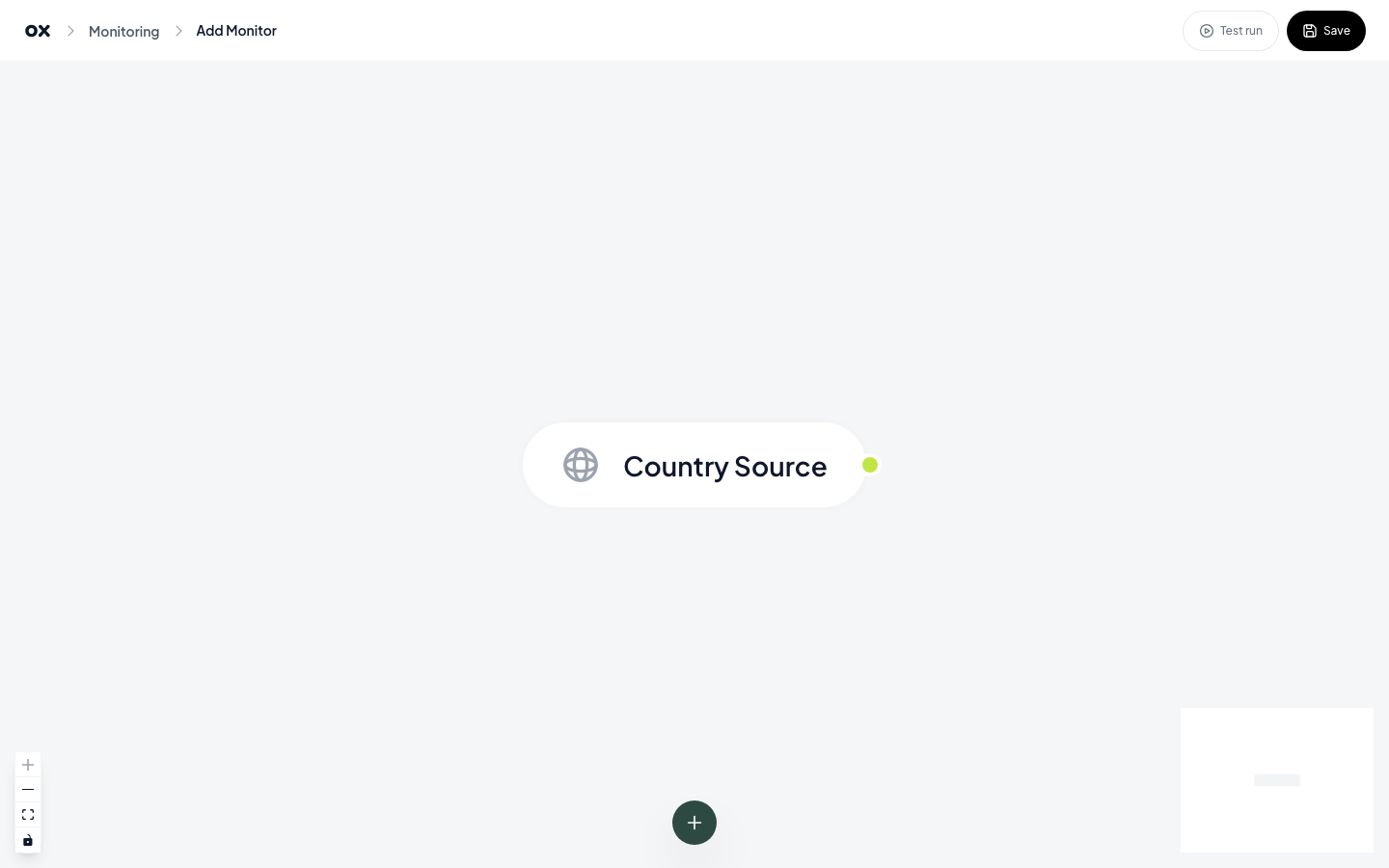
The Country Source is the start of every monitor — every tender Otnox considers will enter the workflow through it. Click the node to pick the markets you want it to watch.
Add filter blocks
Click the + Add block button at the bottom of the canvas. A modal opens with every block type available, grouped by purpose:
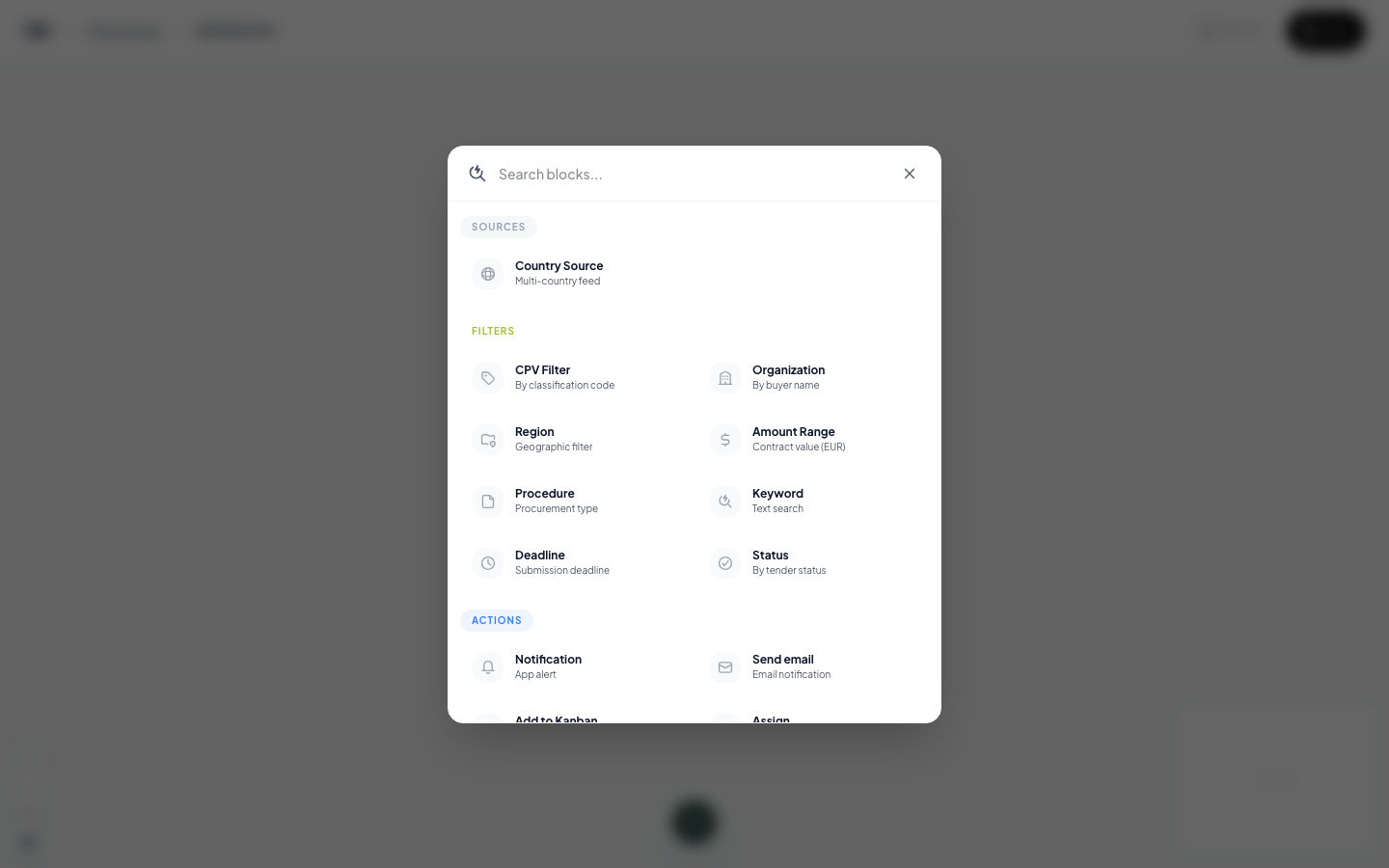
Sources (one per monitor):
- Country Source — a multi-country feed
Filters (chain as many as you like):
- CPV Filter — by classification code
- Organization — by buyer name
- Region — geographic filter
- Amount Range — contract value in EUR
- Procedure — procurement type
- Keyword — title / description text search
- Deadline — submission deadline
- Status — by tender status
Actions (the last node — what to do when a tender matches):
- Notification — in-app alert
- Send email — email notification
- Add to Kanban — drop directly into a project
- Assign — set an owner
Click a tile to drop the block onto the canvas. New blocks are smart-positioned to the right of your most recent block so the canvas stays tidy.
Wire the blocks together
This is the key step. Otnox does NOT auto-connect blocks — you draw the flow yourself by dragging from each block's output handle (the small dot on its right) to the input handle of the next block (the small dot on its left).
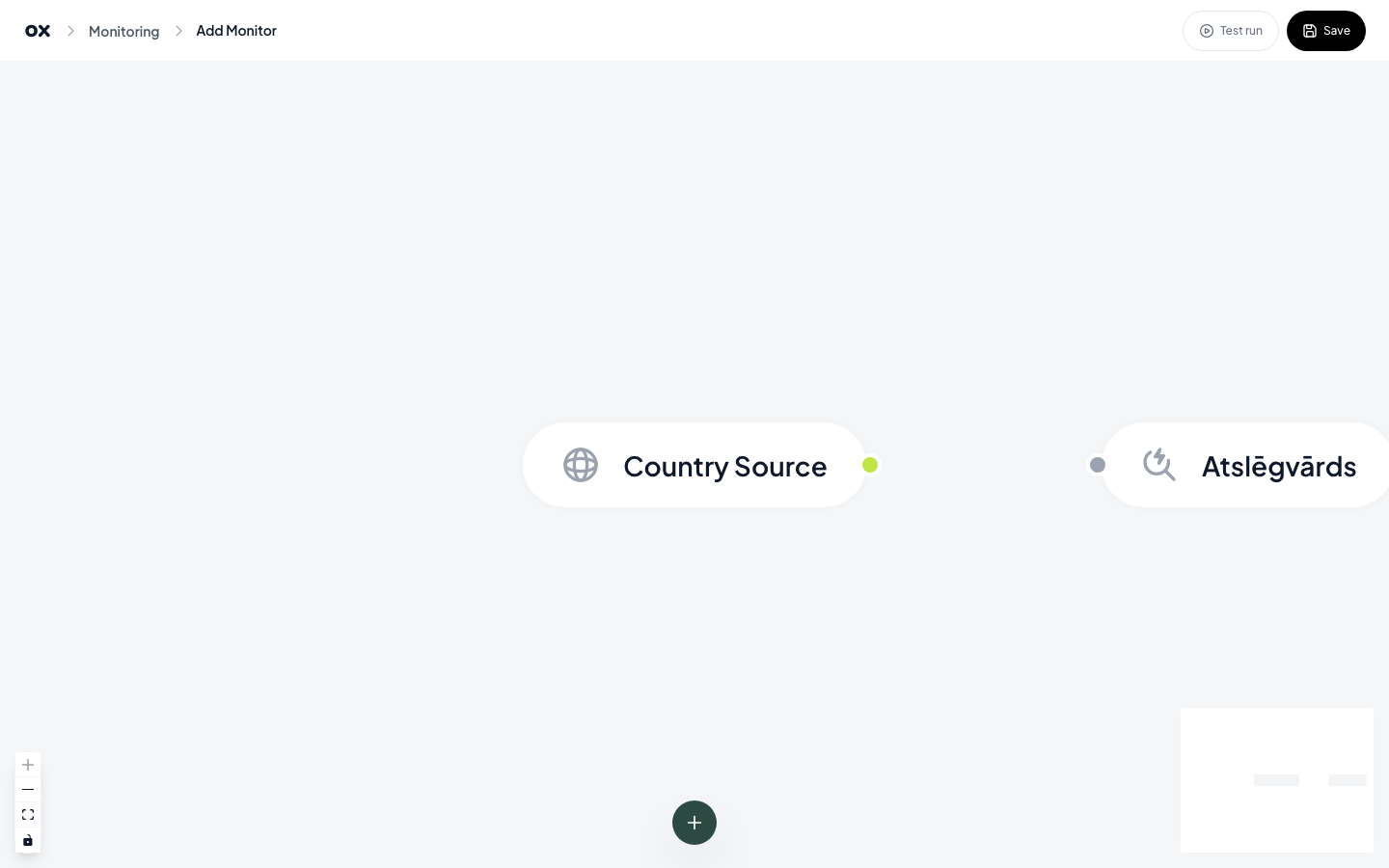
Hover over the source's right-edge handle until the cursor becomes a crosshair, hold the left mouse button, drag to the next block's left-edge handle, and release.
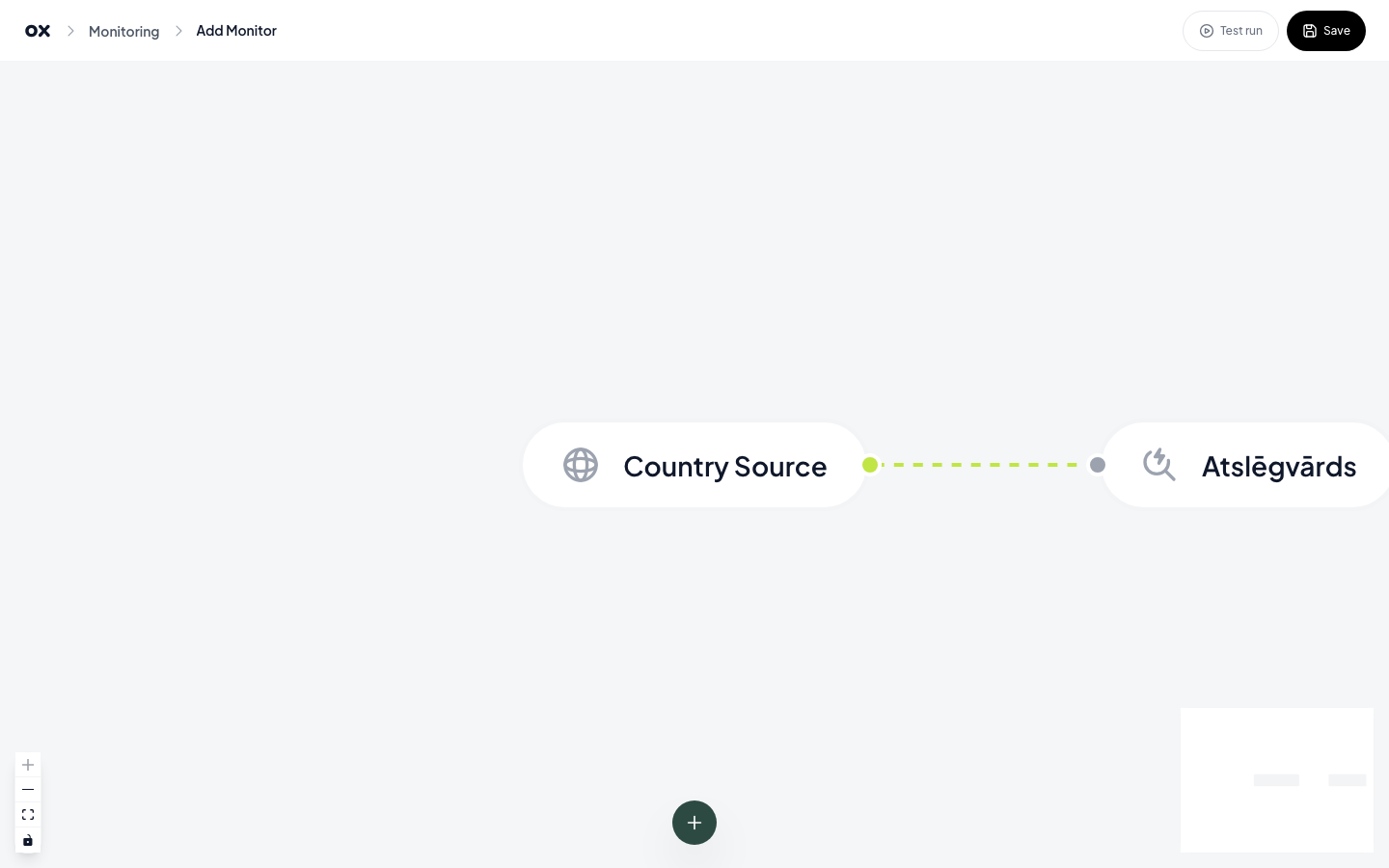
Once connected, the edge animates with a green dashed line — that's the visual confirmation that data flows from the source through your filter to the next block. Repeat for every block you add.
The flow can branch and merge. A source can feed into multiple filters in parallel, and multiple filters can converge on a single action. Use Logic blocks (AND / OR) to combine paths.
Configure each block
Click any block to open its property panel on the right. Each block type has its own controls:
- Country Source — pick which markets
- Keyword — type words it must (or must not) contain
- CPV — pick codes from the hierarchy
- Amount Range — slide min / max EUR
- Send email — set recipient and frequency
- …etc.
Save & enable
Top-right has two buttons:
- Test run — executes the monitor against the last 7 days of history so you can preview the matches before going live.
- Save — persists the workflow and turns it on. The monitor appears in your monitoring list with a toggle to pause / resume.
Sharing & ownership
Monitors are workspace-scoped — everyone in your workspace sees the same list. From the monitor's three-dot menu you can share it with a specific colleague (so the alerts go to them) or reassign ownership.
What's next
- Email alerts — controlling delivery, frequency and digest format.
- Telegram integration — connecting
@otnox_botfor personal Telegram alerts. - Managing preferences — pausing, editing or deleting monitors.