How search works
Otnox indexes tenders from 21 national procurement portals into a single feed. When you open Tenders, you see every tender on the markets you subscribed to, ranked and filterable.
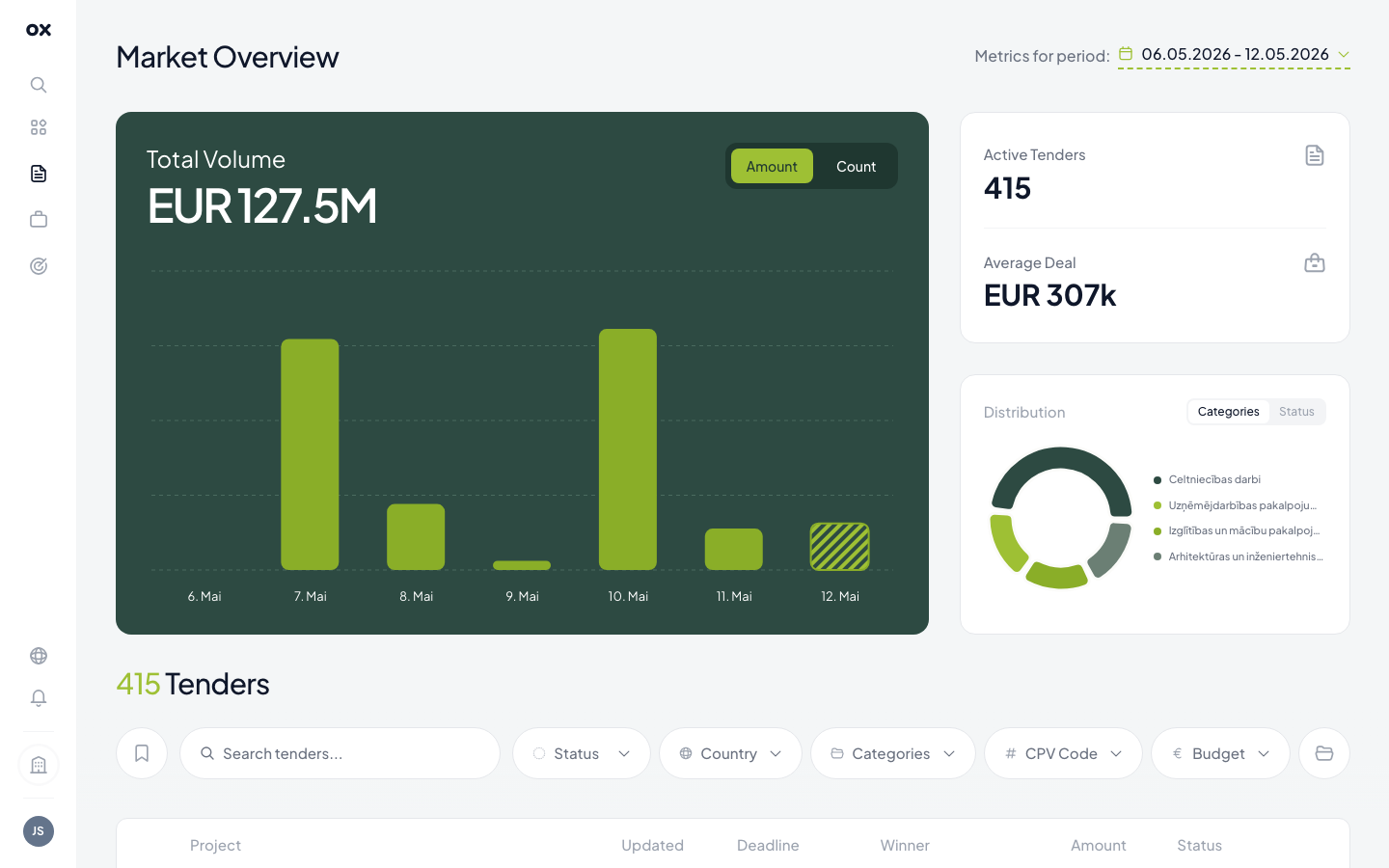
Searching by keyword
Type any keyword or phrase into the search bar. Search runs a case-insensitive substring match across tender titles, descriptions, buyer names and CPV labels — in the original language of the tender. You can search in English, Latvian, Spanish, Portuguese, or any of the other 21 source languages and Otnox returns matches accordingly.
Search operators (quoted phrases, -exclusions, boolean AND/OR) are
not currently supported — just type plain keywords. To narrow further,
combine search with the filter panel.
For non-English markets, search by the local term (e.g. programmēšana for Latvian programming tenders). Otnox does not auto-translate your search query — but you CAN auto-translate the results once they appear.
How results are ranked
By default, tenders are sorted by publication date (newest first). Switch the sort dropdown to AI relevance to reorder by personalised score — the same score that drives the dashboard's Recommended Tenders card. Read more in Relevance score.
Saving searches
Two complementary ways to come back to a search:
- Save the filter combination as a named preset — see Favorites & saved filters.
- Bookmark individual tenders with the heart icon on each row.
For continuous notifications when a new matching tender appears, create a monitor in Monitoring → Add monitor.
Markets covered
Search covers all markets included in your subscription. To restrict to a specific country, use the Country filter. To add a new market, open Settings → Subscription.
Tips for better results
- Use CPV instead of keywords. CPV codes are the procurement classification system used across the EU. Filtering by CPV is faster and more precise than typing the right word in the right language.
- Watch the count. Each filter shows the result count in the header — if it drops to zero, drop a filter.
- Sort by relevance, not date. The first tenders by date are not necessarily the most relevant for you.
- Open the tender popup instead of clicking through to the source portal — you get the AI summary, intelligence and supplier history in one view. See The tender popup.