The tender popup
Click any row in the tenders list to open the tender popup — a side panel that loads on top of the list and contains every detail Otnox knows about the procurement.
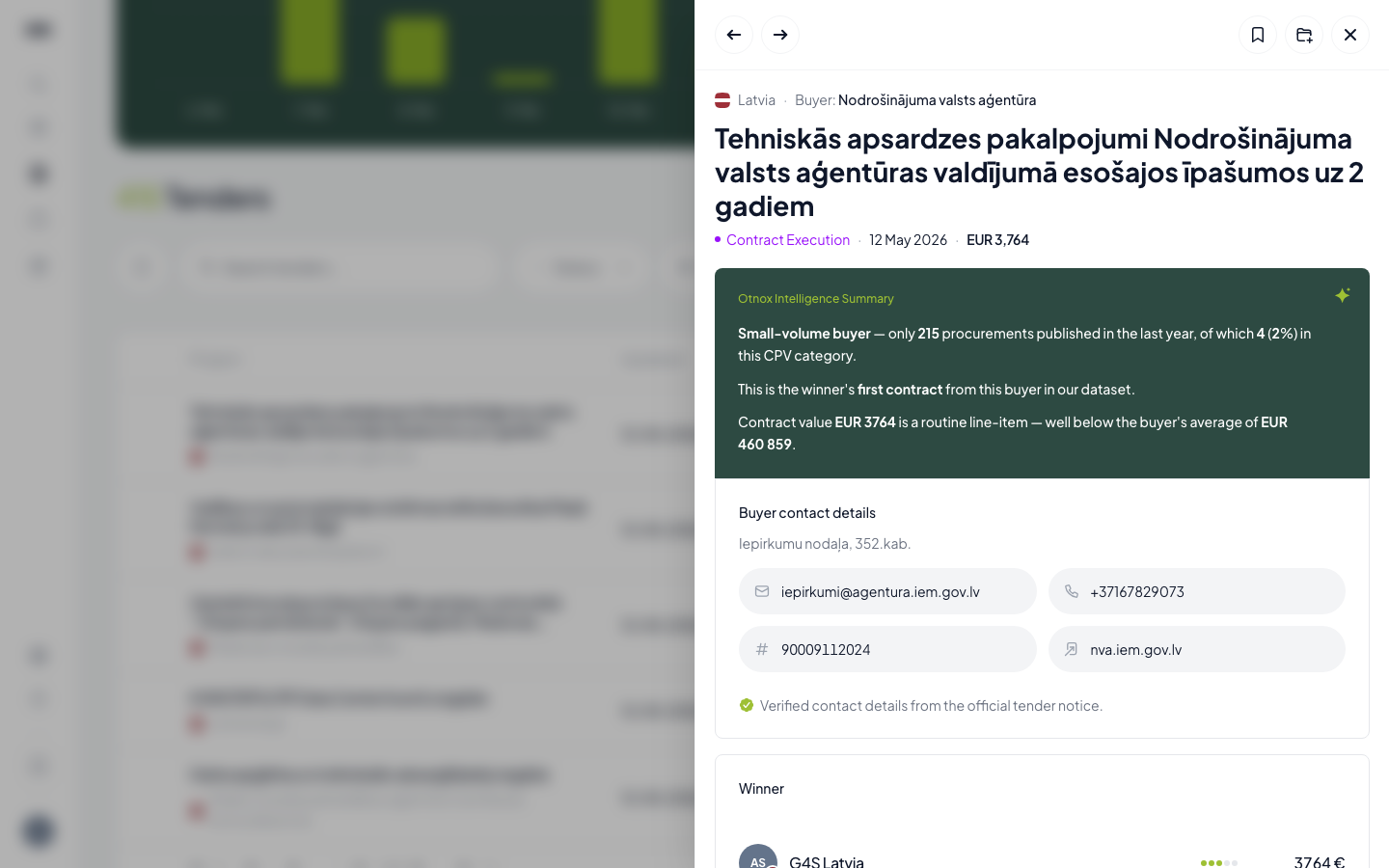
The header — quick actions
The top of the popup is a sticky toolbar with the most common actions:
- ← → previous / next tender. Stays inside the same filtered list you opened the popup from, so if you filtered by Latvia + Open status, the arrows step through that subset only. No need to close the popup.
- REF code — the tender's procurement ID, click to copy.
- 🔖 Bookmark — adds the tender to your favorites (see Favorites & saved filters).
- ➕ Add to project — drop the tender into one of your CRM projects / departments without leaving the popup.
- 📅 Add to calendar — generate a Google / Outlook /
.icsevent for the bid deadline so you don't miss it. - ↗ Source link — opens the tender on the original government portal in a new tab.
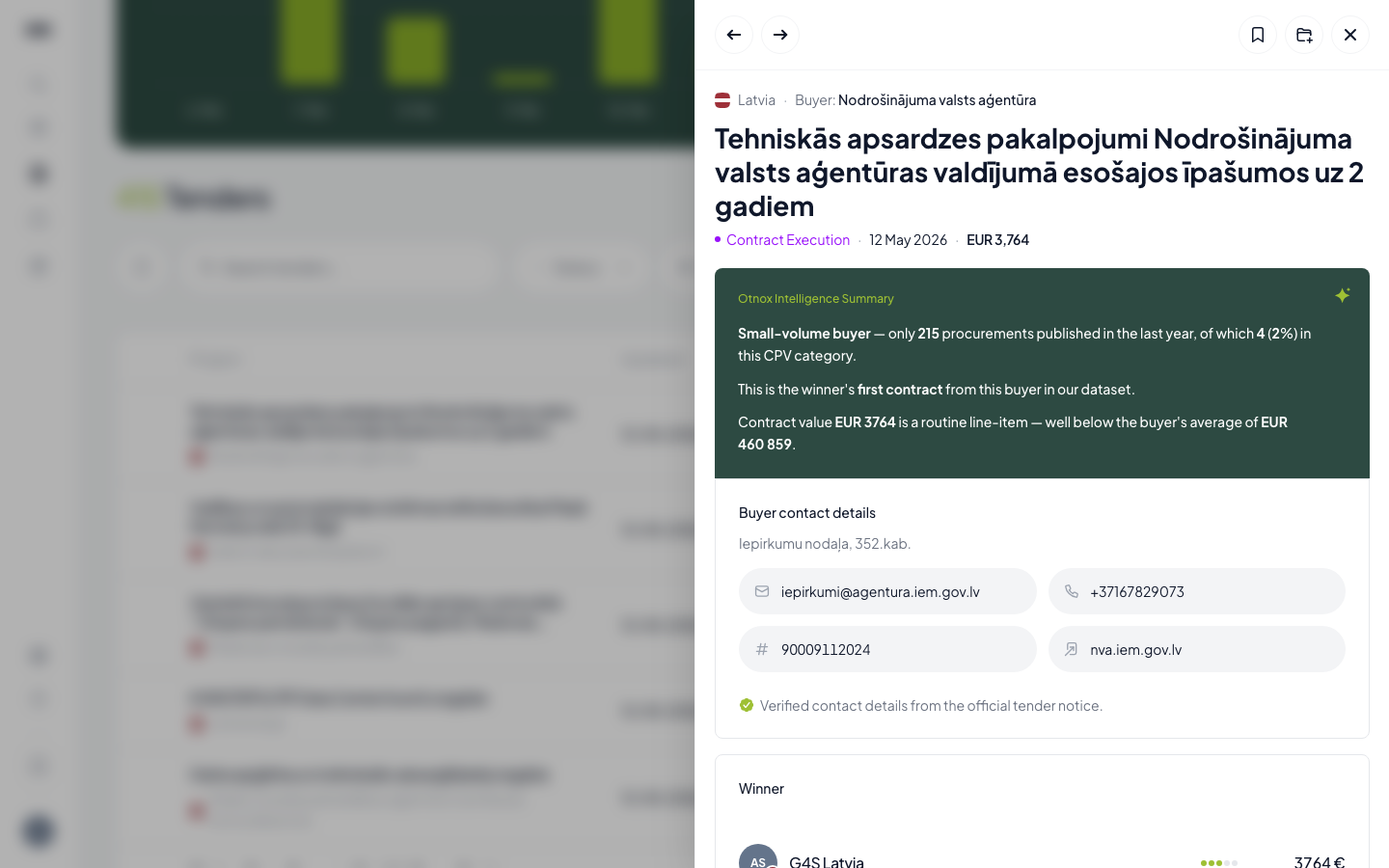
Auto-translate foreign titles
If a tender's title is in a language other than your interface language, an AI sparkle icon appears next to it. Click once and Otnox swaps the original title for an AI translation; click again to flip back. The translation is cached for the session so the next time you open the same tender it's already there.
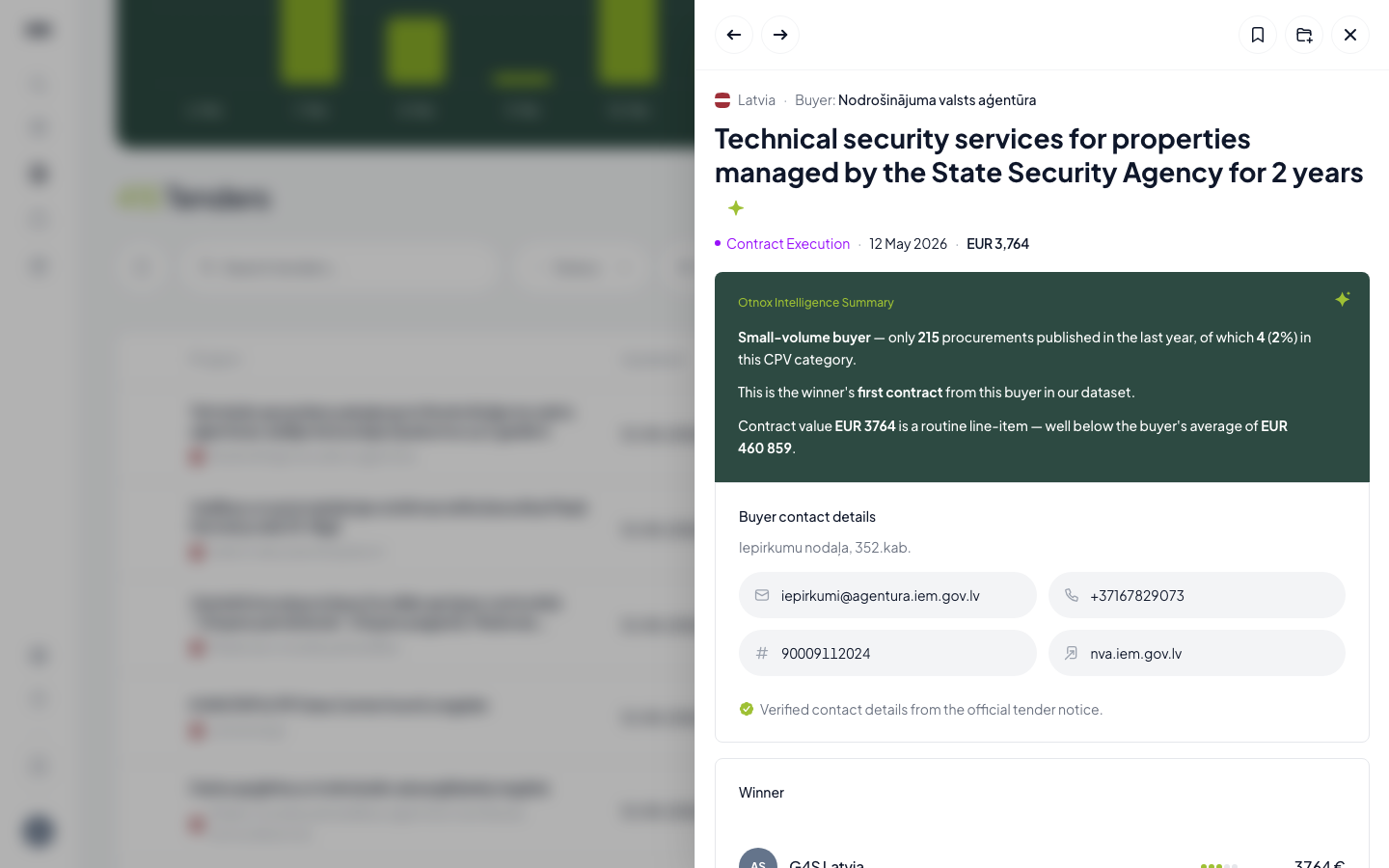
Title translation works across every market — the same one button reads Spanish, Lithuanian, Romanian, Polish, Norwegian or any of the other 21 source languages and produces a clean version in the interface language you're using.
Title translation is per-session and free. To set the target language for translations, open the 🌐 globe menu in the bottom-left of the sidebar and pick a language for the interface — translations follow that choice.
AI summary, intelligence and supplier history
Scroll down the popup and you'll see the rest of the structured data Otnox derives for every tender:
AI summary
A model runs over every tender and extracts:
- A one-sentence what's being bought line
- 3–5 bullet points covering the scope, eligibility, and key dates
- Notable risks or red flags (overly specific requirements, narrow bidder eligibility, unrealistic deadlines)
The AI summary is the fastest way to triage a tender — read 5 bullets in 10 seconds, decide whether the full document is worth opening on the source portal.
Buyer & winner intelligence
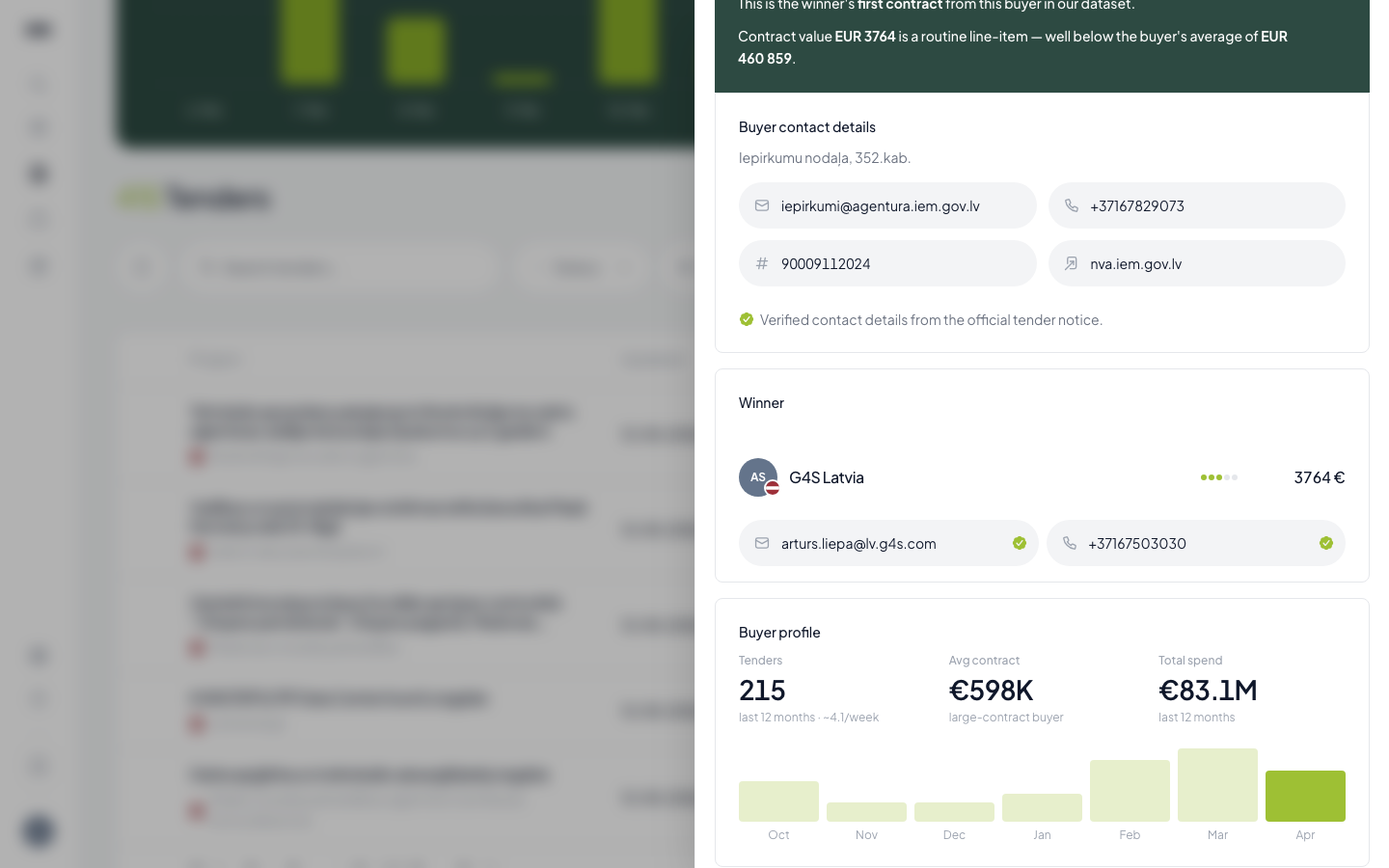
- Buyer profile — number of tenders this contracting authority has published in the last 12 months, average contract value, total spend, and a monthly publication chart.
- Winner history (for awarded tenders) — how often this winner has won bids from the same buyer, win rate, value ranges. Otnox flags whether the contract value is typical for the buyer or an outlier.
This is where Otnox's company graph pays off — the same buyer is linked across years and across tenders, so you can see patterns ("this ministry has awarded 80% of its IT contracts to two suppliers over the last 3 years") before you decide to bid.
Buyer contact details
For contracting authorities Otnox has parsed contact info for, you get the procurement officer's email, phone, and procurement portal URL right in the popup — no need to dig the source notice.
Winner contact details
For awarded tenders, the winning supplier's contacts (email, phone) are shown in the Winner card. Otnox extracts these from public award notices — you don't need to leave the popup to find who won and how to reach them.
In some markets the contact data is gated and requires a small token unlock (3 tokens per supplier). Once unlocked, the contact stays unlocked for your account permanently. Tokens can be bought from Settings → Subscription in packs starting at EUR 5 / 10 tokens.
Comments & timeline
The bottom of the popup carries:
- Timeline — every public event in the procurement's lifecycle (planned, opened, awarded, contracted, etc.) with dates pulled from the source portal.
- Comments — internal notes you and your team can leave on the tender. Useful for "we bid on this last year, lost on price" or "ask Anna about local representative" — visible only to your workspace.
Closing the popup
- Click anywhere outside the popup
- Press Escape
- Click the × in the top right corner
The list behind the popup keeps your filters and scroll position, so you continue right where you stopped.