Using filters
The filter panel on the Tenders page lets you narrow the feed down to the opportunities that fit your business. Filters combine freely — every active one shows as a removable chip above the table.
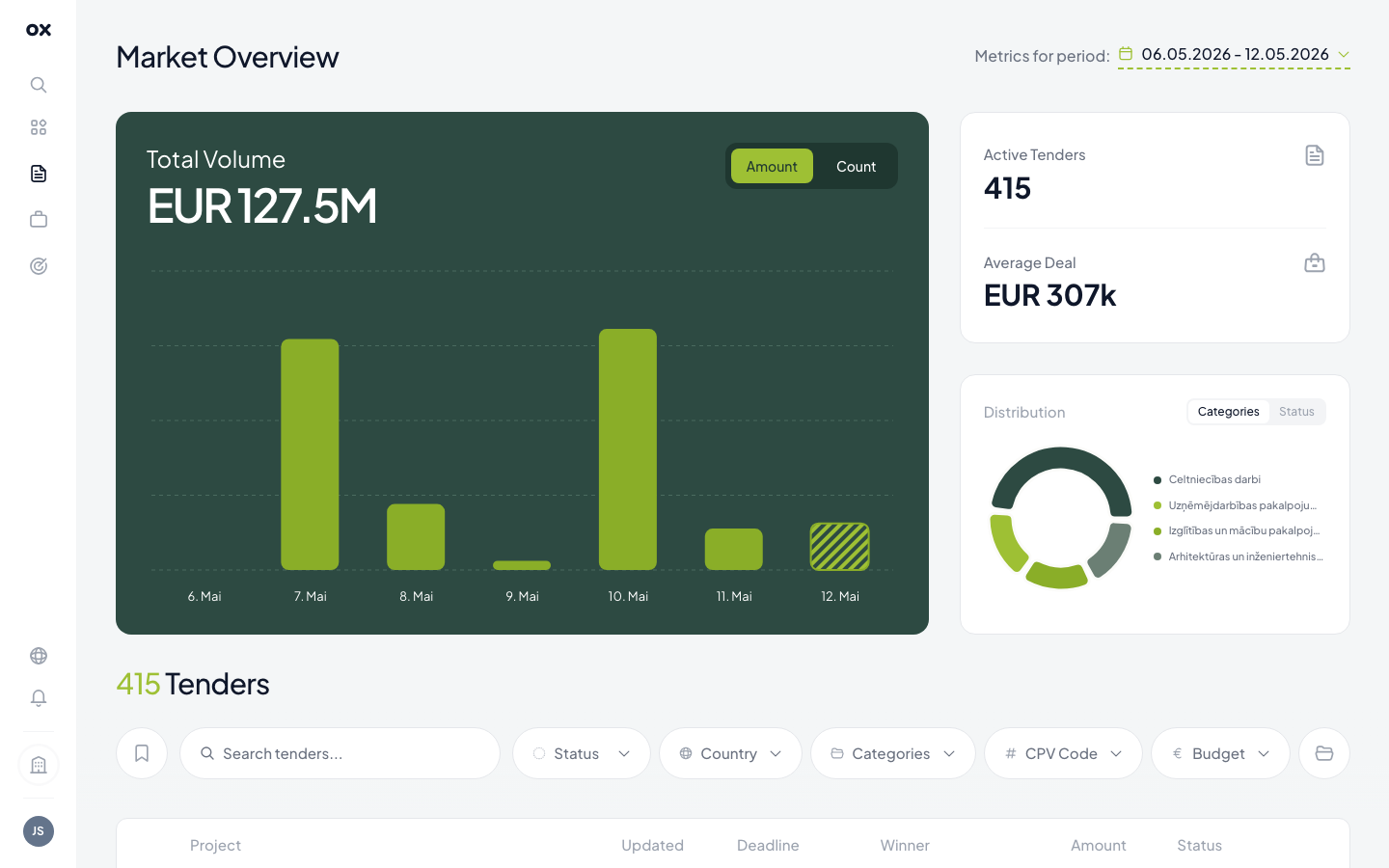
The chip row holds five filter buttons (Status, Country, Categories, CPV Code, Budget), a search input, a bookmark toggle on the left (see Favorites & saved filters) and a folder icon on the right for saving the active filter set.
Status
The procurement procedure stage. Click the Status chip to open the dropdown and tick one or more values.
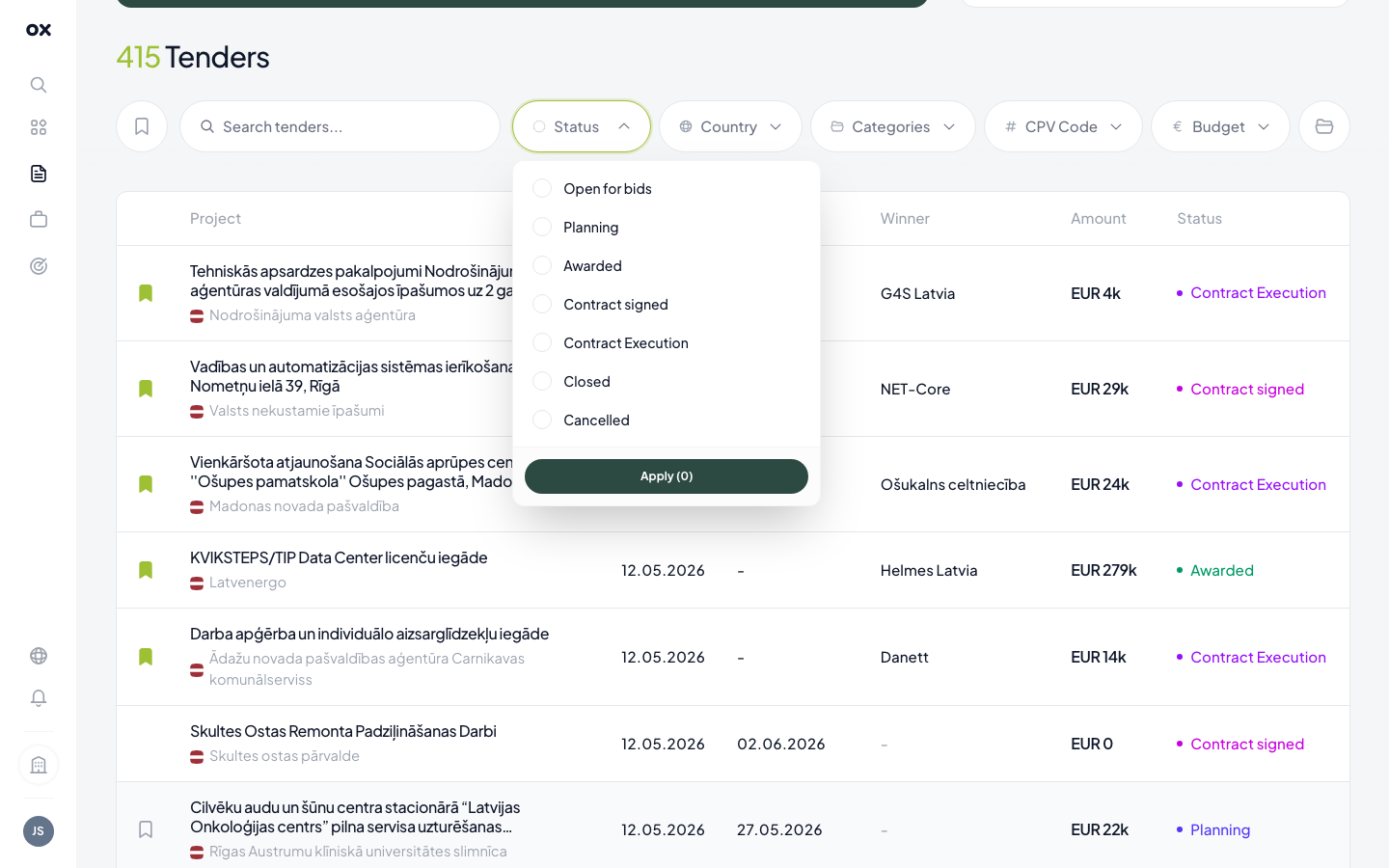
Status options:
- 🔵 Open for bids — accepting bids (the most common starting filter)
- 🟣 Planning — pre-announcement / consultation
- 🟢 Awarded — contract decision published
- 🟪 Contract signed — contract signed by both parties
- 🟪 Contract Execution — work in progress
- ⚪ Closed — completed
- 🔴 Cancelled — withdrawn
Status is colour-coded both in the dropdown and on every row in the list, so you can scan the feed and see which tenders are still accepting bids without opening each one.
Country
Multi-select dropdown of every country in your subscription. Useful when you only have capacity to bid in certain markets.
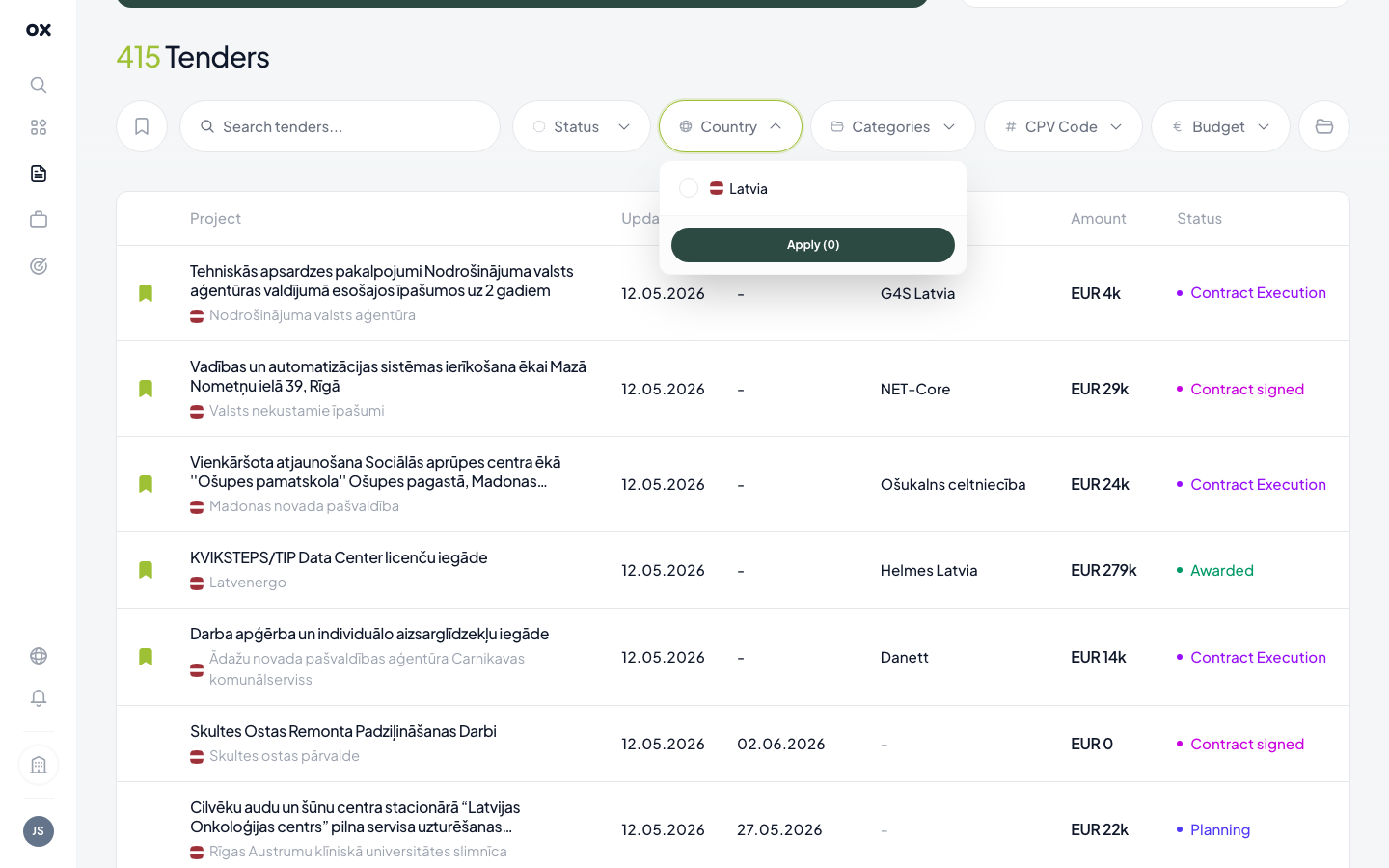
The list only includes countries you've paid for — to add new markets, see Adding markets.
Categories
Industry buckets — the same 12 you picked during onboarding (Mining & metals, Food & beverages, Agricultural machinery, Clothing & footwear, IT, Construction, Consulting, …). One click filters to your sector.
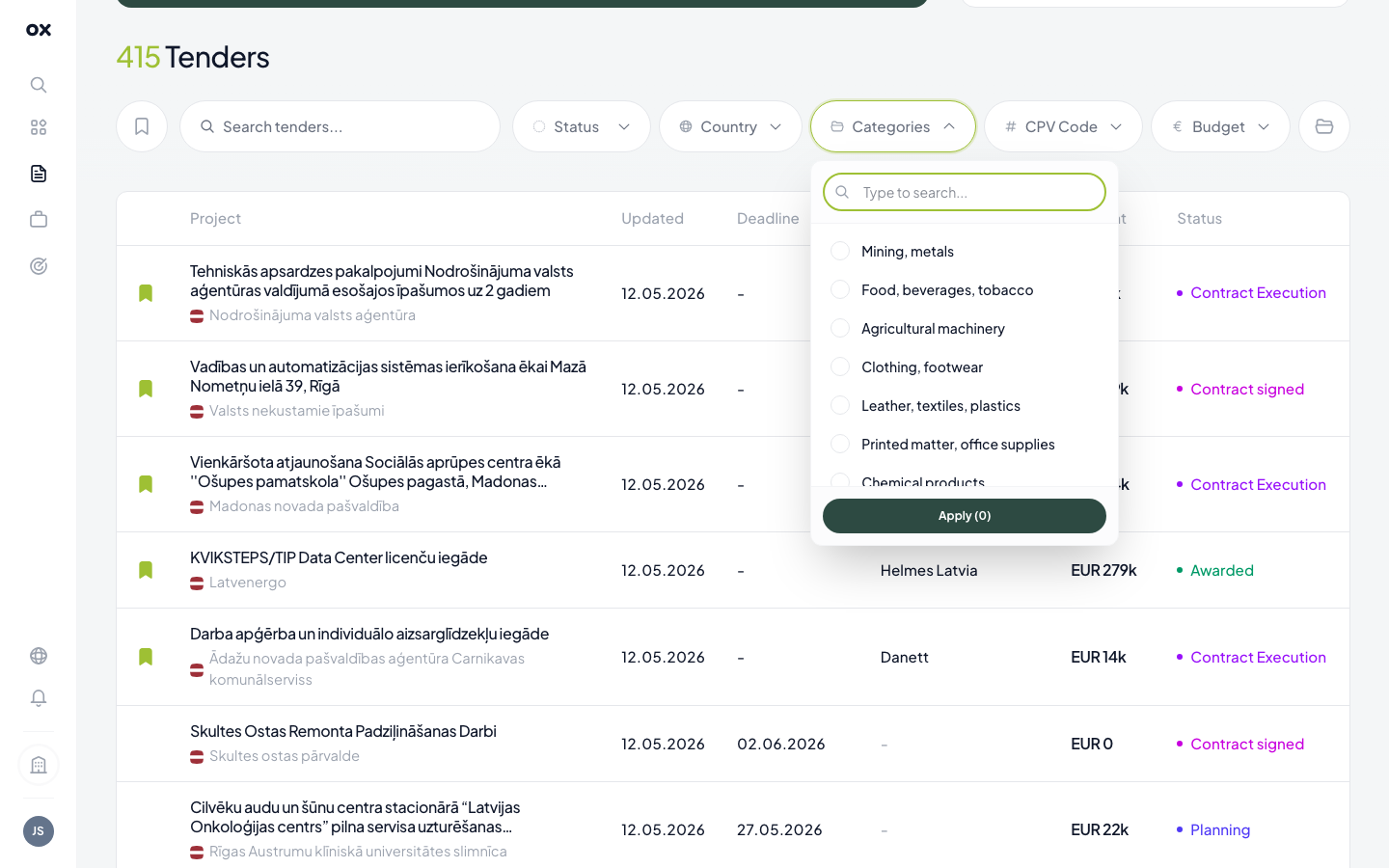
Categories are a coarse-grained shortcut over CPV codes — picking "IT" is equivalent to selecting every IT-related CPV in one move.
CPV Code
The European Common Procurement Vocabulary — a granular, 8-digit-coded taxonomy of everything a public body can buy. Start typing a keyword or a partial code and pick from the suggestions.
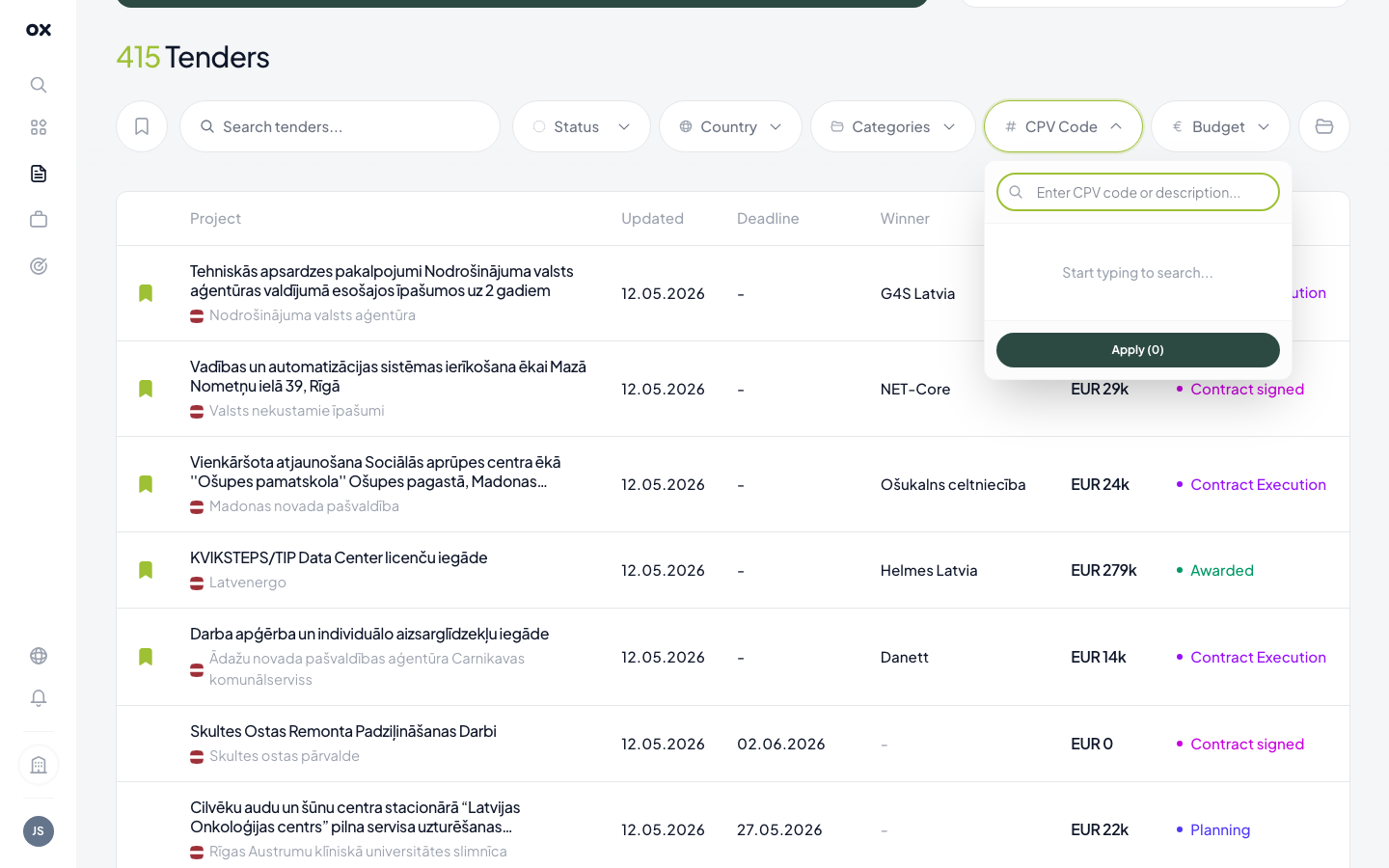
Multiple CPVs use OR logic. See CPV codes for how the hierarchy works.
Budget
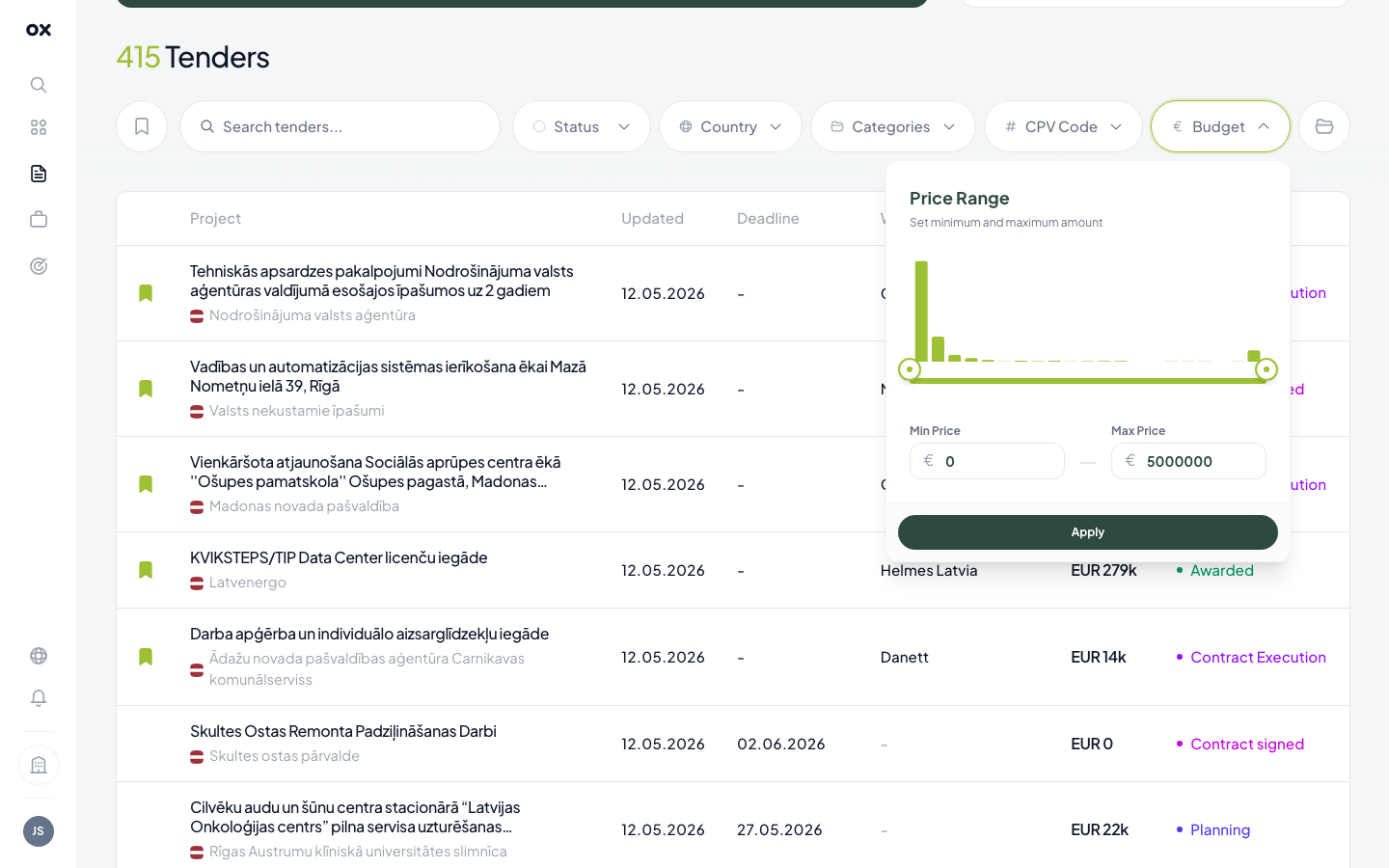
A two-handle slider over the estimated contract value range, with a histogram of how many tenders sit at each value bucket. Drag the handles or type into the Min Price / Max Price boxes to exclude tiny line-items and prime-contractor jumbos in one move.
Filter in action
Once you apply a filter, the chip row updates:
- The filter button shows a green count badge (e.g., Status • 1).
- Active filters show as removable chips below the row with a one-click × to remove.
- A Clear all link wipes every active filter at once.
- The tender count above the chip row updates live.
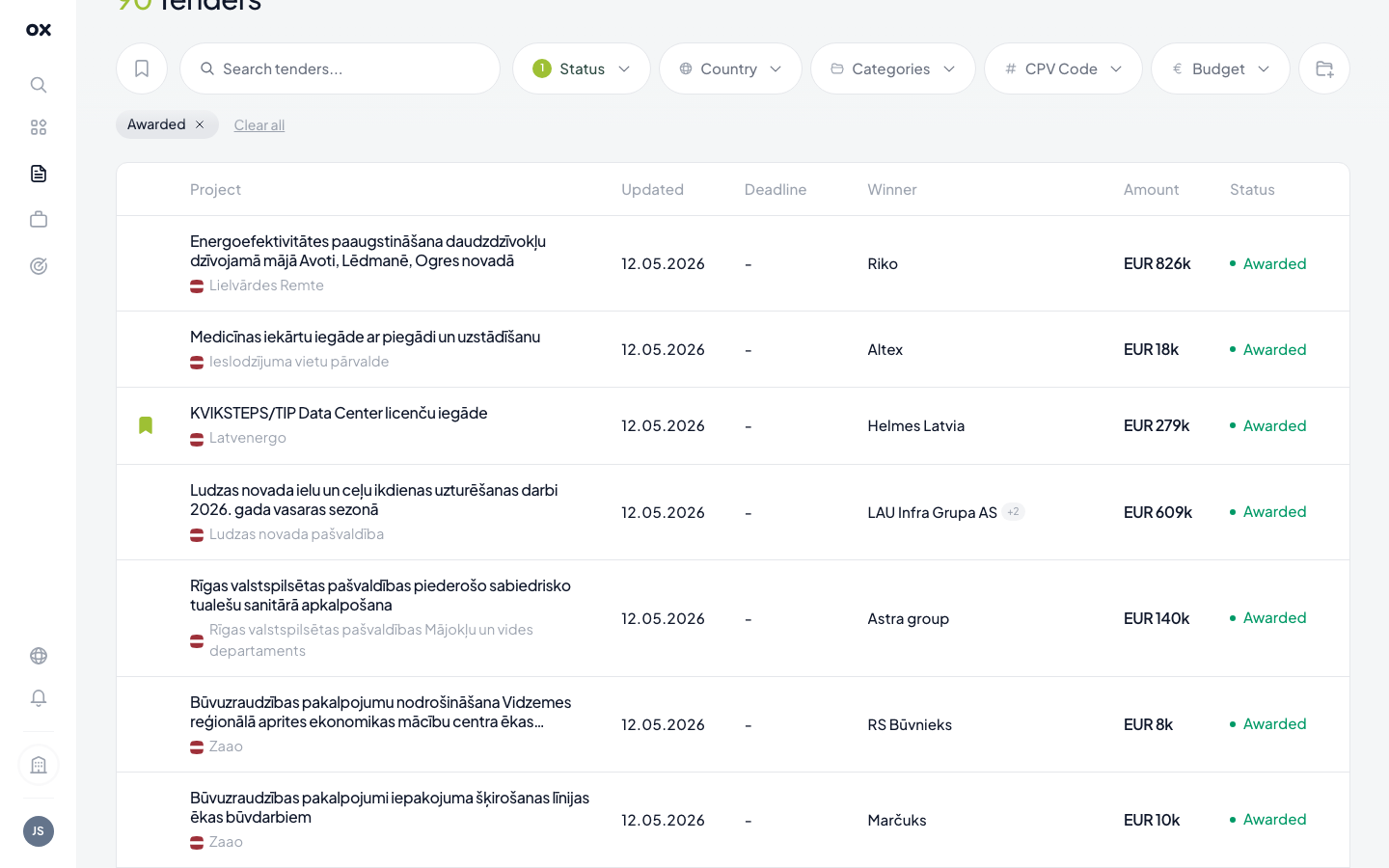
The colour-coded status badge on each row confirms the filter is applied — in the screenshot above, every visible row is Awarded.
Filter persistence
Active filters are reflected in the URL — bookmark the page or send the link to a teammate to share the exact same view. Otnox also remembers the last filter you used and restores it the next time you open the page.
Save the combination as a preset
Building the perfect filter set is work — once you have one that produces good results, save it under a name so you can recall it in one click later. See Favorites & saved filters.
Beyond the table — make it a monitor
When you've found a filter combination you'd want to re-run daily, open Monitoring → Add monitor and reproduce the same filters in the visual workflow builder. The monitor runs continuously and pushes every new matching tender to your inbox or Telegram instead of you re-opening this page.